
Distributing Tasks in Things 3 with AppleScript

I have some pretty good systems for capturing action items; maybe they are too good. Pair that with the fact that no matter how solid my weekly review feels, it’s easy to skip the next one. Pretty quickly, the inputs outpace the outputs, and like the second page of Google search results, there are corners of my Things database I haven’t seen in quite some time.
To address those quiet corners, I’ve spent time working on an automation that puts tasks in front of me every day. While Claude and Gemini both helped me refine this script, what I’m sharing with you today is straight AppleScript; there is no AI required to run it.
So strap in and let me show you my latest creation.
Use Case
There are two versions of this script, each solving a different problem.
Chipping Away at Big Projects
The first version helps me systematically tackle large, non-urgent projects, like updating the WordPress categories and tags on my blog. The post you’re reading is the 144th on this site, and updating the metadata on those posts is tedious. However, there is no deadline, and I have no desire to grind in the WordPress admin panel for hours at a time.
So, I created a Things project for updating post metadata. I quickly automated the creation of individual action items for each of the 144 blog posts, and had a nice big project to track everything. But, that project would sit in an area of Things, completely undisturbed, so I created the Distributor script.
The script takes the selected items in Things and, starting with today, assigns a “When” date to each action item, one day at a time. My project to update all 144 blog posts starts today and continues for the next 143 days. To each their own, but I find it incredibly easy to knock out one of these with my morning coffee and eventually cross the finish line.
Dealing with Backlog
I’ve also found this extraordinarily helpful for dealing with accumulated task backlog. Instead of avoiding a weekly review because I want to dodge processing a massive list, I can select everything and run the distributor script. In seconds, I’ve broken up the Herculean task of the weekly review into tiny, manageable moments.
Working with Deadlines
The second version handles large parallel projects that carry the urgency of a deadline. This script asks for your target completion date, then takes your selected tasks and equally divides them across the days between today and your deadline. Unlike the native Deadline feature in Things, which only warns you when you’re late, this script creates a roadmap to get you there.
If there’s an uneven number of tasks, it front-loads the extras to give you wiggle room. If there are fewer tasks than available days, it spaces them out evenly so you complete everything on time but with breaks between tasks; there is no need to work consecutively.
How It Works
Both versions of the script respect any deadlines you’ve assigned and preserve all tags, area, and notes on your tasks. When you run either script, you get the option to preserve or overwrite any existing “When” dates. Any preserved dates or deadlines are reserved so a second task doesn’t get assigned to a day that already has something scheduled.
Both scripts are also contextually aware of tasks tagged with “work”; those tasks won’t be assigned to Saturdays or Sundays, keeping your weekends free from intrusion.
Code Share
Distributor (Sequential)
This version distributes tasks one per day, starting from today.
(*
Things Task Date Distributor
Version: 1.6
Created by: Mike Burke (https://www.themikeburke.com), Claude (Anthropic), and Gemini
Last Updated: 2025-02-09

License: MIT
Copyright (c) 2025 Mike Burke
Permission is hereby granted to use, copy, modify, and share this script freely,
provided the above copyright and attribution notices are preserved.
Full license text: https://opensource.org/licenses/MIT

Description:
This AppleScript enhances Things 3's task management by automatically distributing selected tasks across multiple days.
It helps break down large projects into manageable daily tasks while respecting work/personal boundaries and existing due dates.

Functionality:
1. Processes selected tasks in Things 3 and distributes them across multiple days
2. For each task, it:
   a. Checks for existing due dates OR activation ("When") dates to use as anchor points
   b. Identifies work vs. personal tasks via tags (case-insensitive)
   c. Preserves and maintains:
      - Project assignment
      - Area
      - Tags
      - Notes
      - Original dates (used as anchor points)
   d. Handles scheduling based on task type:
      - Work tasks: Scheduled only on weekdays (Locale-safe logic)
      - Personal tasks: Can be scheduled any day
   e. Distributes tasks around anchor points:
      - Respects existing due dates so you don't double-book
      - Prevents task clustering
   f. Updates each task with new scheduled date

Usage:
1. Select multiple tasks in Things 3
2. Run this script (typically via Stream Deck + Keyboard Maestro)
3. Confirm the number of tasks to be distributed
4. Tasks will be automatically scheduled across available days

Note: Requires Things 3 for macOS. Works best when triggered via Keyboard Maestro
and Stream Deck for efficient workflow integration. Tasks tagged with "work"
will only be scheduled on weekdays.
*)

use scripting additions
use application "Things3"

-- =============================================================================
-- Main Handler
-- Purpose: Entry point for the script that processes selected tasks and distributes them
-- Operations:
--   1. Validates task selection
--   2. Detects existing "When" dates and asks user preference
--   3. Sorts tasks by existing dates (using efficient Insertion Sort)
--   4. Distributes undated tasks across available days
-- =============================================================================
on run
	tell application "Things3"
		-- Get and validate selected to-dos
		-- This ensures we have something to work with before proceeding
		set selectedTodos to selected to dos
		if selectedTodos is {} then
			display dialog "Please select some to-dos first." buttons {"OK"} default button "OK" with title "No Tasks Selected"
			return
		end if

		set taskCount to count of selectedTodos

		-- Check for existing "When" dates (Activation Dates)
		-- Sometimes tasks have a start date but no deadline. We need to know if we should move these.
		set hasActivationDates to false
		repeat with todoItem in selectedTodos
			if activation date of todoItem is not missing value then
				set hasActivationDates to true
				exit repeat
			end if
		end repeat

		-- Ask user preference regarding conflicts
		-- If tasks are already scheduled, we shouldn't overwrite them without permission
		set respectWhenDates to false
		if hasActivationDates then
			set whenDatePrompt to display dialog "Some selected tasks already have scheduled dates. How should the script handle them?" buttons {"Cancel", "Overwrite All", "Respect Existing"} default button "Respect Existing" cancel button "Cancel" with title "Existing Dates Detected"

			if button returned of whenDatePrompt is "Cancel" then return
			if button returned of whenDatePrompt is "Respect Existing" then set respectWhenDates to true
		else
			-- Standard confirmation if no conflicts detected
			set dialogResult to display dialog "Distribute " & taskCount & " tasks sequentially starting from today?" buttons {"Cancel", "Continue"} default button "Continue" cancel button "Cancel" with title "Distribute Tasks"
			if button returned of dialogResult is "Cancel" then return
		end if

		-- Initialize arrays for dated and undated tasks
		-- Dated tasks act as "anchors" that block those specific days
		set todosWithDates to {}
		set todosWithoutDates to {}

		-- Sort tasks into dated and undated arrays
		-- We check both Due Dates (Deadlines) and Activation Dates (Start Dates)
		repeat with todoItem in selectedTodos
			set shouldAnchor to false

			-- Priority 1: Check Due Date (Deadline)
			-- We normalize the time to 0 (midnight) to ensure accurate date comparisons
			set todoDue to due date of todoItem
			if todoDue is not missing value then
				set time of todoDue to 0
				set end of todosWithDates to {todo:todoItem, dueDate:todoDue}
				set shouldAnchor to true
			end if

			-- Priority 2: Check Activation Date
			-- Only check this if we are respecting existing dates and the task isn't already anchored by a deadline
			if not shouldAnchor and respectWhenDates then
				set todoActivation to activation date of todoItem
				if todoActivation is not missing value then
					set time of todoActivation to 0
					set end of todosWithDates to {todo:todoItem, dueDate:todoActivation}
					set shouldAnchor to true
				end if
			end if

			-- If no relevant dates found, mark for distribution
			if not shouldAnchor then
				set end of todosWithoutDates to todoItem
			end if
		end repeat

		-- Sort dated tasks chronologically
		-- This helps the algorithm "see" upcoming blocks in the schedule
		set todosWithDates to my sortTodosByDate(todosWithDates)

		-- Initialize date counter from today
		-- We start scheduling from today and move forward sequentially
		set currentDate to current date
		set time of currentDate to 0

		-- Process and distribute undated tasks
		-- This assigns each undated task to the next available slot
		repeat with todoItem in todosWithoutDates
			-- Check for work tag (Optimized)
			-- AppleScript's 'contains' operator is case-insensitive by default.
			-- This efficiently catches "work", "Work", or "WORK" without a loop.
			set tagNames to name of tags of todoItem
			set isWorkTask to (tagNames contains "work" or tagNames contains "Work")

			-- Get next available date
			-- This function skips weekends (for work tasks) and existing anchor dates
			set nextDate to my findNextAvailableDate(currentDate, isWorkTask, todosWithDates)

			-- Update Things 3
			schedule todoItem for nextDate

			-- Advance the counter
			-- We move to the day AFTER the one we just assigned
			set currentDate to nextDate + (1 * days)
		end repeat

	end tell
end run

-- =============================================================================
-- Helper Function: findNextAvailableDate
-- Purpose: Determines the next available date for task scheduling
-- Parameters:
--   startDate: The date to start checking from
--   isWorkTask: Boolean indicating if task is work-related
--   anchorTodos: List of existing dated tasks to work around
-- Returns: Date object for next available scheduling slot
-- =============================================================================
on findNextAvailableDate(startDate, isWorkTask, anchorTodos)
	set candidateDate to startDate

	-- Loop until we find a valid date
	-- We use a 'repeat' loop instead of recursion to prevent stack overflow errors on large lists
	repeat
		set isAvailable to true

		-- Weekend Check (International Safe)
		-- We use integer comparison instead of text names ("Saturday").
		-- In AppleScript: 1 is ALWAYS Sunday, 7 is ALWAYS Saturday.
		-- This ensures the script works on computers in Germany, Spain, Japan, etc.
		if isWorkTask then
			set theWeekday to weekday of candidateDate as integer
			if theWeekday is in {1, 7} then set isAvailable to false
		end if

		-- Anchor Check
		-- If the day isn't a weekend, check if it's blocked by an existing task
		if isAvailable then
			repeat with anchorRecord in anchorTodos
				if (dueDate of anchorRecord) is equal to candidateDate then
					set isAvailable to false
					exit repeat -- Stop checking anchors if we found a conflict
				end if
			end repeat
		end if

		-- If passed all checks, return this date
		if isAvailable then return candidateDate

		-- Otherwise, advance to the next day and try again
		set candidateDate to candidateDate + (1 * days)
	end repeat
end findNextAvailableDate

-- =============================================================================
-- Helper Function: sortTodosByDate
-- Purpose: Sorts a list of todo records by their due dates
-- Algorithm: Insertion Sort
-- Note: Insertion sort is significantly faster than Bubble Sort for this use case
--       because task lists are often "partially" sorted already.
-- =============================================================================
on sortTodosByDate(todoList)
	set n to count of todoList
	if n < 2 then return todoList -- No need to sort 0 or 1 items

	repeat with i from 2 to n
		set currentItem to item i of todoList
		set currentDate to dueDate of currentItem
		set j to i - 1

		-- Shift elements that are greater than currentDate to the right
		repeat while j > 0
			set comparisonItem to item j of todoList
			if (dueDate of comparisonItem) ≤ currentDate then exit repeat

			set item (j + 1) of todoList to comparisonItem
			set j to j - 1
		end repeat

		-- Insert current item at its correct position
		set item (j + 1) of todoList to currentItem
	end repeat

	return todoList
end sortTodosByDate
To Use
- Select the tasks you want to distribute in Things.
- Run the script.
- Confirm the distribution.
- Tasks are scheduled starting today, one per day.
Distributor with Deadline
This version distributes tasks based on a target completion date.
(*
Things Task Deadline Distributor
Version: 1.6
Created by: Mike Burke (https://www.themikeburke.com), Claude (Anthropic), and Gemini
Last Updated: 2025-02-09

License: MIT
Copyright (c) 2025 Mike Burke
Permission is hereby granted to use, copy, modify, and share this script freely,
provided the above copyright and attribution notices are preserved.
Full license text: https://opensource.org/licenses/MIT

Description:
This AppleScript helps manage deadline-driven projects by evenly distributing selected tasks
across all available days until a target completion date. It respects work/personal boundaries
and existing due dates while front-loading tasks when distribution is uneven.

Functionality:
1. Processes selected tasks in Things 3 and distributes them toward a deadline
2. Prompts for target completion date (Supports ISO 8601 YYYY-MM-DD input)
3. For each task, it:
   a. Preserves tasks with existing due dates as immovable anchors
   b. Identifies work vs. personal tasks via tags (case-insensitive)
   c. Maintains:
      - Project assignment
      - Area
      - Tags
      - Notes
      - Original due dates (for anchor tasks)
   d. Handles scheduling based on task type:
      - Work tasks: Scheduled only on weekdays (Locale-safe logic)
      - Personal tasks: Can be scheduled any day
   e. Distributes undated tasks evenly toward deadline:
      - Front-loads when distribution is uneven (more tasks earlier)
      - Schedules tasks to complete by day BEFORE target date
      - Respects anchor dates that can't be used
   f. Updates each task with new scheduled date

Usage:
1. Select multiple tasks in Things 3
2. Run this script (typically via Stream Deck + Keyboard Maestro)
3. Enter target completion date in YYYY-MM-DD format
4. Confirm distribution plan
5. Tasks will be automatically scheduled across available days

Note: Requires Things 3 for macOS. Works best when triggered via Keyboard Maestro
and Stream Deck for efficient workflow integration. Tasks tagged with "work"
will only be scheduled on weekdays.
*)

use scripting additions
use application "Things3"

-- =============================================================================
-- Main Handler
-- Purpose: Entry point for the script that processes selected tasks and
--          distributes them toward a deadline
-- Operations:
--   1. Validates task selection
--   2. Prompts for ISO 8601 target date
--   3. Separates tasks into anchored (with dates) and undated
--   4. Calculates available days
--   5. Distributes undated tasks with front-loading logic
-- =============================================================================
on run
	tell application "Things3"
		-- Get and validate selected to-dos
		set selectedTodos to selected to dos
		if selectedTodos is {} then
			display dialog "Please select some to-dos first." buttons {"OK"} default button "OK" with title "No Tasks Selected"
			return
		end if

		-- Prompt for target completion date
		-- Using ISO 8601 format (YYYY-MM-DD) for unambiguous date entry
		set datePrompt to display dialog "Enter target completion date (YYYY-MM-DD):" default answer "" buttons {"Cancel", "Continue"} default button "Continue" cancel button "Cancel" with title "Set Deadline"
		if button returned of datePrompt is "Cancel" then return

		set dateInput to text returned of datePrompt

		-- Parse and validate date
		-- Uses a robust parsing handler that prevents locale and rollover errors
		try
			set targetDate to my parseDate(dateInput)
		on error
			display dialog "Invalid date format. Please use YYYY-MM-DD." buttons {"OK"} default button "OK" with title "Invalid Date"
			return
		end try

		-- Set actual deadline to the day BEFORE the target
		-- This creates a safety buffer. If you say "Due Friday", the script aims to finish Thursday.
		set actualDeadline to targetDate - (1 * days)

		-- Validate that deadline is in the future
		set today to current date
		set time of today to 0
		if actualDeadline < today then
			display dialog "Target date must be in the future (at least 2 days from now to allow for the buffer)." buttons {"OK"} default button "OK" with title "Invalid Date"
			return
		end if

		-- Check for existing "When" dates (Activation Dates)
		set hasActivationDates to false
		repeat with todoItem in selectedTodos
			if activation date of todoItem is not missing value then
				set hasActivationDates to true
				exit repeat
			end if
		end repeat

		-- Ask user preference for handling existing dates
		set respectWhenDates to false
		if hasActivationDates then
			set whenDatePrompt to display dialog "Some tasks already have scheduled dates. How should we handle them?" buttons {"Cancel", "Overwrite All", "Respect Existing"} default button "Respect Existing" with title "Existing Dates Detected"
			if button returned of whenDatePrompt is "Cancel" then return
			if button returned of whenDatePrompt is "Respect Existing" then set respectWhenDates to true
		end if

		-- Initialize arrays for anchor tasks and undated tasks
		set anchorTodos to {}
		set undatedTodos to {}

		-- Separate tasks into anchored and undated
		-- We preserve due dates and (optionally) activation dates as immovable blocks
		repeat with todoItem in selectedTodos
			set shouldAnchor to false

			-- Priority 1: Check Due Date
			set todoDue to due date of todoItem
			if todoDue is not missing value then
				set time of todoDue to 0
				set end of anchorTodos to {todo:todoItem, dueDate:todoDue}
				set shouldAnchor to true
			end if

			-- Priority 2: Check Activation Date (if user opted to respect them)
			if not shouldAnchor and respectWhenDates then
				set todoActivation to activation date of todoItem
				if todoActivation is not missing value then
					set time of todoActivation to 0
					set end of anchorTodos to {todo:todoItem, dueDate:todoActivation}
					set shouldAnchor to true
				end if
			end if

			if not shouldAnchor then
				set end of undatedTodos to todoItem
			end if
		end repeat

		-- Sort anchor tasks chronologically
		set anchorTodos to my sortTodosByDate(anchorTodos)

		-- Separate undated tasks by type (work vs personal)
		-- We use case-insensitive tag checking for robustness
		set workTasks to {}
		set personalTasks to {}

		repeat with todoItem in undatedTodos
			set tagNames to name of tags of todoItem
			-- 'contains' handles "work", "Work", "WORK" automatically
			if tagNames contains "work" or tagNames contains "Work" then
				set end of workTasks to todoItem
			else
				set end of personalTasks to todoItem
			end if
		end repeat

		-- Calculate available days
		-- This scans the calendar and removes weekends (for work) and anchor dates
		set workDays to my calculateAvailableDays(today, actualDeadline, true, anchorTodos)
		set personalDays to my calculateAvailableDays(today, actualDeadline, false, anchorTodos)

		set workTaskCount to count of workTasks
		set personalTaskCount to count of personalTasks
		set workDayCount to count of workDays
		set personalDayCount to count of personalDays

		-- Sanity Check: Is it physically possible?
		if (workTaskCount > 0 and workDayCount = 0) or (personalTaskCount > 0 and personalDayCount = 0) then
			display dialog "Impossible Schedule: You have tasks to do but 0 available days (due to weekends or anchor conflicts)." buttons {"OK"} default button "OK" with title "Impossible Schedule"
			return
		end if

		-- Generate Preview
		-- Calculating average tasks per day helps set user expectations
		set previewMessage to "Distribution Plan:" & return & return
		if workTaskCount > 0 then
			set avgWork to (round ((workTaskCount / workDayCount) * 10)) / 10
			set previewMessage to previewMessage & "• Work: " & workTaskCount & " tasks / " & workDayCount & " days (~" & avgWork & "/day)" & return
		end if
		if personalTaskCount > 0 then
			set avgPers to (round ((personalTaskCount / personalDayCount) * 10)) / 10
			set previewMessage to previewMessage & "• Personal: " & personalTaskCount & " tasks / " & personalDayCount & " days (~" & avgPers & "/day)"
		end if

		set confirmResult to display dialog previewMessage buttons {"Cancel", "Distribute"} default button "Distribute" with title "Confirm Schedule"
		if button returned of confirmResult is "Cancel" then return

		-- Distribute Tasks
		if workTaskCount > 0 then my distributeTasksToDays(workTasks, workDays)
		if personalTaskCount > 0 then my distributeTasksToDays(personalTasks, personalDays)

	end tell
end run

-- =============================================================================
-- Helper Function: parseDate
-- Purpose: Safely converts YYYY-MM-DD string to AppleScript date object
-- Parameters:
--   dateString: String in YYYY-MM-DD format
-- Returns: Date object
-- Note: This function avoids common AppleScript date bugs by not using 'current date'
-- =============================================================================
on parseDate(dateString)
	-- Split the string
	set AppleScript's text item delimiters to "-"
	set dateComponents to text items of dateString
	set AppleScript's text item delimiters to ""

	if (count of dateComponents) is not 3 then error "Invalid date format"

	set theYear to item 1 of dateComponents as integer
	set theMonth to item 2 of dateComponents as integer
	set theDay to item 3 of dateComponents as integer

	-- Create a fresh date object based on a known safe constant (Jan 1, 2000)
	-- This prevents inheriting the current time of day
	set resultDate to date "Saturday, January 1, 2000 at 12:00:00 AM"

	-- Critical: Set Day to 1 BEFORE changing month
	-- If today is Jan 31st and we set month to Feb, it will auto-roll to March 3rd.
	-- Setting day to 1 first prevents this "rollover" bug.
	set day of resultDate to 1
	set year of resultDate to theYear
	set month of resultDate to theMonth
	set day of resultDate to theDay
	set time of resultDate to 0

	return resultDate
end parseDate

-- =============================================================================
-- Helper Function: calculateAvailableDays
-- Purpose: Generates list of available dates between start and end
-- Parameters:
--   weekdaysOnly: Boolean, true for work tasks (skip weekends)
-- Note: Uses Integer check for weekends to ensure international compatibility
-- =============================================================================
on calculateAvailableDays(startDate, endDate, weekdaysOnly, anchorTasks)
	set availableDays to {}
	set currentDate to startDate

	repeat while currentDate ≤ endDate
		set isAvailable to true

		-- Weekend Check
		-- AppleScript Constant: 1 is ALWAYS Sunday, 7 is ALWAYS Saturday.
		-- This works on US, UK, ISO, and German/French systems universally.
		if weekdaysOnly then
			if (weekday of currentDate as integer) is in {1, 7} then set isAvailable to false
		end if

		-- Anchor Check
		-- If not a weekend, check if blocked by anchor
		if isAvailable then
			repeat with anchor in anchorTasks
				if (dueDate of anchor) is equal to currentDate then
					set isAvailable to false
					exit repeat
				end if
			end repeat
		end if

		if isAvailable then set end of availableDays to currentDate

		set currentDate to currentDate + (1 * days)
	end repeat

	return availableDays
end calculateAvailableDays

-- =============================================================================
-- Helper Function: distributeTasksToDays
-- Purpose: Distributes tasks across available days with smart distribution
-- Operations:
--   - When tasks >= days: Front-loads (div/mod logic)
--   - When tasks < days: Evenly spaces tasks (interval logic)
-- =============================================================================
on distributeTasksToDays(taskList, dayList)
	set taskCount to count of taskList
	set dayCount to count of dayList

	tell application "Things3"

		-- SCENARIO A: Front-Loading (More Tasks than Days)
		-- We need to "pack" tasks. Some days get 2, some get 1.
		if taskCount ≥ dayCount then
			-- Integer division (div) gives the base number
			-- Modulo (mod) gives the remainder
			set baseTasksPerDay to taskCount div dayCount
			set remainderTasks to taskCount mod dayCount
			set currentTaskIndex to 1

			repeat with dayIndex from 1 to dayCount
				set currentDay to item dayIndex of dayList

				-- If we have remainders, add them to the earliest days (front-loading)
				if dayIndex ≤ remainderTasks then
					set tasksForThisDay to baseTasksPerDay + 1
				else
					set tasksForThisDay to baseTasksPerDay
				end if

				-- Assign the batch for this day
				repeat tasksForThisDay times
					if currentTaskIndex ≤ taskCount then
						schedule (item currentTaskIndex of taskList) for currentDay
						set currentTaskIndex to currentTaskIndex + 1
					end if
				end repeat
			end repeat

			-- SCENARIO B: Spacing Out (More Days than Tasks)
			-- We need to spread them out. 5 tasks over 10 days = 1 task every 2 days.
		else
			set interval to dayCount / taskCount

			repeat with i from 1 to taskCount
				-- Logic: Calculate the exact position on the timeline
				-- We add 0.5 via 'round ... as taught in school' to handle spacing predictably
				-- This prevents clustering at the very end
				set rawIndex to ((i - 1) * interval)
				set dayIndex to (round (rawIndex) rounding as taught in school) + 1

				-- Safety clamps to ensure we don't crash by going out of bounds
				if dayIndex > dayCount then set dayIndex to dayCount
				if dayIndex < 1 then set dayIndex to 1

				schedule (item i of taskList) for (item dayIndex of dayList)
			end repeat
		end if
	end tell
end distributeTasksToDays

-- =============================================================================
-- Helper Function: sortTodosByDate
-- Algorithm: Insertion Sort
-- Note: Faster than bubble sort for typical task lists
-- =============================================================================
on sortTodosByDate(todoList)
	set n to count of todoList
	if n < 2 then return todoList

	repeat with i from 2 to n
		set currentItem to item i of todoList
		set currentDate to dueDate of currentItem
		set j to i - 1

		repeat while j > 0
			set comparisonItem to item j of todoList
			if (dueDate of comparisonItem) ≤ currentDate then exit repeat

			set item (j + 1) of todoList to comparisonItem
			set j to j - 1
		end repeat

		set item (j + 1) of todoList to currentItem
	end repeat

	return todoList
end sortTodosByDate
To Use
- Select the tasks you want to distribute in Things.
- Run the script.
- Enter your target completion date (YYYY-MM-DD format).
- Confirm the distribution plan.
- Tasks are distributed evenly toward your deadline.
Keyboard Maestro Integration
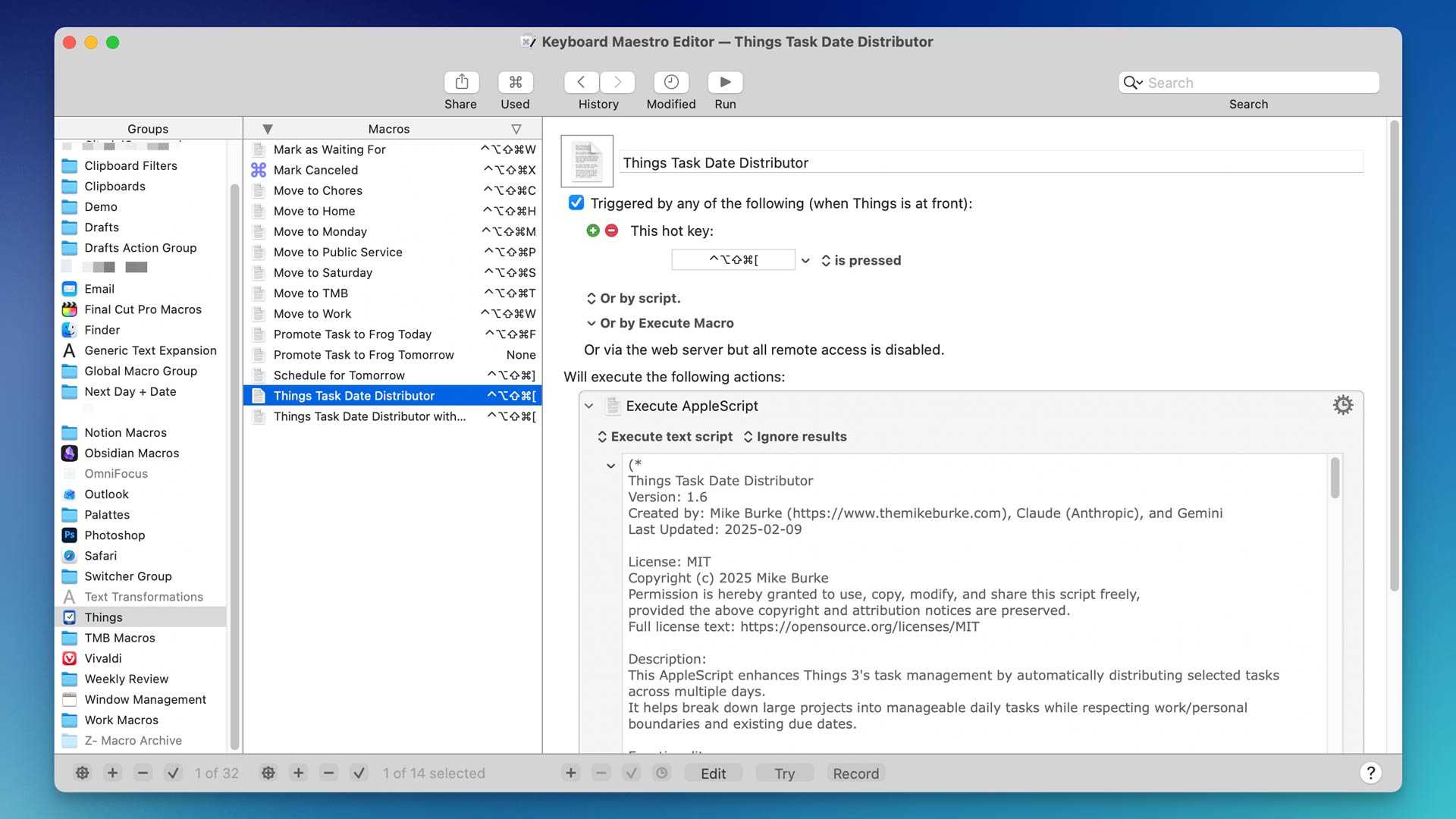
To make this easier to use, I’ve created two Keyboard Maestro macros in my Things macro group. When I press Hyper + Left Bracket (I map Caps Lock to Hyper), a conflict palette appears letting me choose between the sequential distributor or the deadline distributor.
Each macro runs the AppleScript using Keyboard Maestro’s Execute AppleScript action, so the code is embedded directly in the macro; there are no separate script files to manage.
My Workflow
- Select action items in Things.
- Hit the macro hotkey.
- Choose from the conflict palette.
- Respond to the prompt.
- The Distributor runs.
Within two seconds, I go from an amorphous pile of possibilities to successive steps toward success.
Impact
The impact on my work is significant: I’m happily chipping away at tasks I haven’t seen in months, and I’m completing work ahead of schedule, even without my fancy project templates. It removes the friction of “planning” so I can get straight to “doing.”
Outro
In the end, this is a script that helps me deal with my imperfect self. As awesome as a weekly review is, I’ll likely work through dozens of tasks this way before my next one; that is okay. You have to work with the motivation you’ve got.
I also want to acknowledge that these scripts never would have been created without the assistance of LLMs, particularly Claude and Google Gemini. These types of custom scripts are still my absolute favorite use case for AI.
I encourage you to grab the code above and adapt it to your situation however you see fit. Everything is commented thoroughly enough that anyone interested in AppleScript, or any LLM, should be able to adapt this to fit their specific needs.








Leave a Reply
Want to join the discussion?Feel free to contribute!